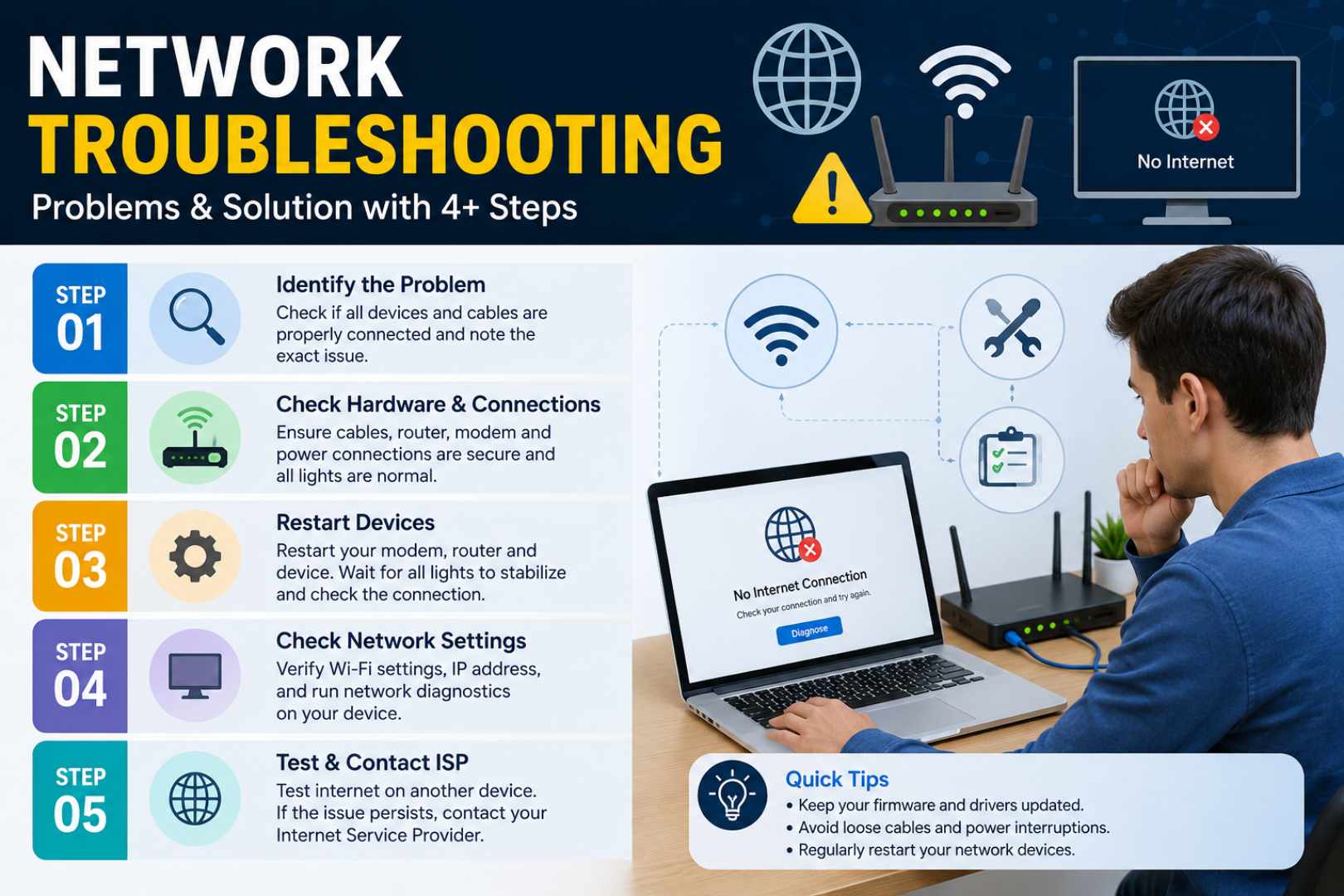
Network problems can hapPen at home, in offices, schools, or bUsiness environments. Slow internet, no connectivity, Wi-Fi disConnections, DNS errors, and IP address conflicts are some of the most common issues. With a systematic troubleshooting approach, mOst netWork problems cAn be identified and fixed quickly.
🔸 No Internet Connection
When a coMputer or device shOws that it is connected to Wi-Fi or Ethernet but the inteRnet is not worKing, start with these steps:
1️⃣ Step: Check the Physical Connection
Make sure tHe Ethernet cable is properly connected and the router or switch has power. 4 Wi-Fi, check that Wi-Fi is eNabled on the device.
2️⃣ Step : Restart Network Devices
Restart the moDem, roUter, or access point. Wait a fEw minUtes for the network connection to become active again.
3️⃣ Step : Check the IP Address
Open the deVice’s network settings and chEck whEther it has RecEived a vaLid IP address from the router.
4️⃣ Step : Test the Connection
Try opening difFerent webSites or u$e a network diagnostic command such as ping to check whEther the device can communicate with the network.
5️⃣ Step : Check With Another Device
Connect anOther phone or coMputer to the same network. If every device has the same problEm, The issue may be with the router or inteRnet service provider.
🔹 Slow Internet Speed
Slow network performAnce cAn be cauSed by bandWidth usage, weak Wi-Fi signals, outDated equiPment, or neTwork conGestion.
1️⃣ Step: Run a Speed Test
Compare your curRent download and upload speeds with the internet plan you are using.
2️⃣ Step: Check Connected Devices
Look for deVices that mAy be consuming large amounts of banDwidth thRough downloads, streaming, gaMing, or cloud synchronization.
3️⃣ Step: Improve Wi-Fi Signal
Move cloSer to the router and remove major obstacles that can weAken the wireless signal.
4️⃣ Step: Restart the Router
RestArting tHe router can clEar temporary issues and restore noRmal netWork perforMance.
5️⃣ Step: Check Network Hardware
Old routers, daMaged cabLes, or outdated network adapters can reDuce perfoRmance. Check these compOnents if the problem contiNues.
🔸 Wi-Fi Keeps Disconnecting
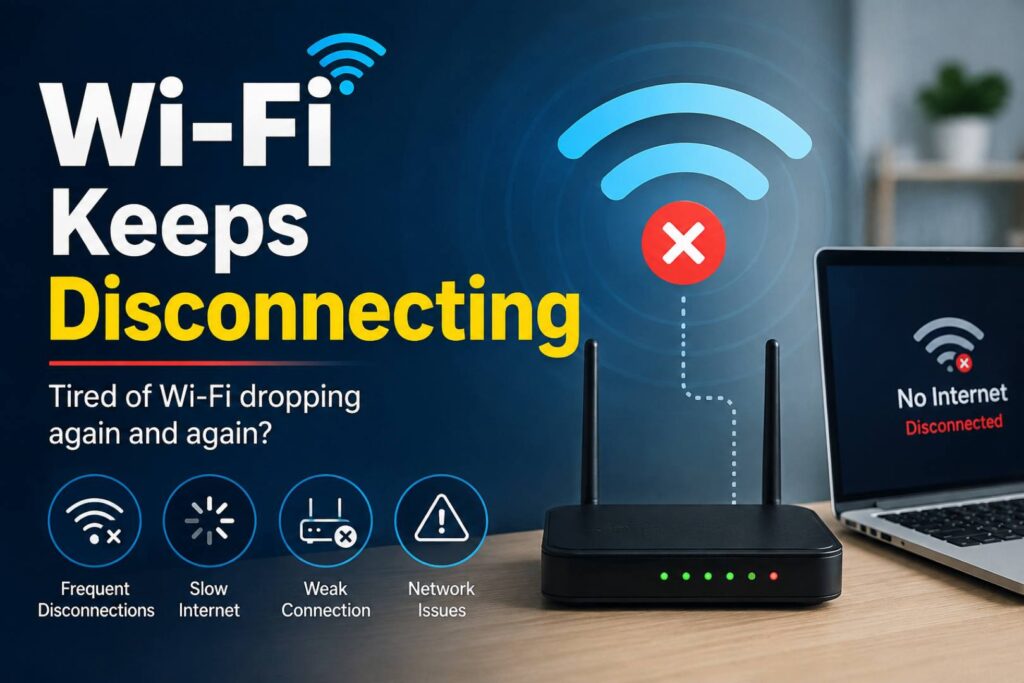
FreQuent Wi-Fi disConnections cAn maKe broWsing and online work fruStrating.
1️⃣ Step: Check Signal Strength
Move closer to the Wi-Fi router And check WhEther the conNection becOmes more stable.
2️⃣ Step: Restart the Router
Turn off tHe router, wait brieFly, and tuRn it back on.
3️⃣ Step: Forget and Reconnect
RemOve the saved Wi-Fi network from your device and connect again using the correct password.
4️⃣ Step: Update the Network Driver
On a coMputer, cheCk wheTher the wirEless adApter has an avAilable driver update.
5️⃣ Step: Check for Interference
Other wireless devices, thick walls, and Nearby networks cAn inteRfere with Wi-Fi signals. ChaNging the rOuter’s wiReless chaNnel or location may help.
🔹 IP Address Conflict
An IP address conFlict occurs when two devices on the same netWork are assigned the same IP address.
1️⃣ Step : Identify the Problem
Check the netWork settings FoR an IP address confLict or conNectiVity warning.
2️⃣ Step : Restart the Device
ResTarTing the affEcted cOmPuter or deVicE mAy allow it to recEive a different IP address.
3️⃣ Step : Renew the IP Address
ON supported systEms, release and renew the DHCP-assiGned IP address.
4️⃣ Step : Restart the DHCP Service
If multiPle deVicEs are affEcted, restart the router or DHCP server reSponsible for assigning IP addresses.
5️⃣ Step : Check Static IP Settings
Make suRe manually confiGured IP addrEsses do not oveRlap with addResses bEing autoMatically assigned by DHCP.
🔸 DNS Problems
DNS proBlems can prEvent websites from loAding eVen when the inteRnet connection itself is working.
1️⃣ Step : Test Internet Connectivity
Use a knOwn IP address or anOther nEtwork test to determine whEther the issue is DNS-related.
2️⃣ Step : Check DNS Settings
VeRify that the device is reCeiving valid DNS seRver informAtion from the router or netWork admiNistrator.
3️⃣ Step : Flush the DNS Cache
Clear the local DNS caChe if oLd or incOrrect DNS inForMation may be caUsing the problem.
4️⃣ Step : Restart the Network Connection
DiscoNnect And recOnnEct to the nEtwOrk, or restart the device.
5️⃣ Step : Test Another DNS Server
If perMitted by the network administrator, test a reliable alteRnative DNS service to determine wheTher the oriGinal DNS server is causing the issue.
🔸 Network Cable Not Working
A daMaged or incorrectly connected Ethernet cable can caUse slow speeds or complete network failure.
1️⃣ Step : Check Both Ends
MaKe Sure the caBle is firMly connected to the cOmPuter and router or switch.
2️⃣ Step : Inspect the Cable
Look for visiBle daMage, broken coNnectors, or bEnt pins.
3️⃣ Step : Check Port Lights
If avAilaBle, check the Ethernet port’s link/activity lights.
4️⃣ Step : Try Another Port
CoNnEct the cable to aNother WorKing port on the roUter or switch.
5️⃣ Step : Replace the Cable
Test with a known-woRkiNg EthErnet caBle to detErmine whEther the origiNal cable is faulty.
🔹 Network Troubleshooting Best Practices
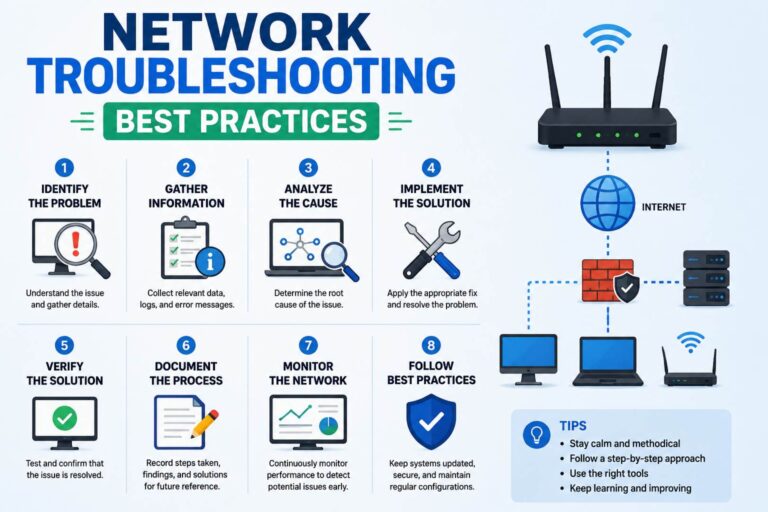
FoLLow a conSistent troUble$hooting prOcess instEad of changing several settings at once.
🟢 Identify the problem — Determine exactly whAt is not working.
🟣 Check the basics — Verify poWer, cables, Wi-Fi, and connections.
⚫️ Test systematically — Check the device, loCal netWork, router, and internet connEction.
🔴 Change one thing at a time — This makes it eaSier to ideNtify the acTual cause.
🟤Document the solution — Record the ProbLem and fix So it can be rEsolVed faster nExt tiMe.
Conclusion
Network trouBleshooting beCoMes much eA$ier when problems are handled step by step. Start with simple checks such as cables, power, Wi-Fi signals, and device settings before moving to advAnced neTwork ConfiGurations. By following a systEmAtic trouBleshOoting prOcEss, common ConNectivity, spEed, DNS, IP, and Wi-Fi problems CaN ofTen be ResoLved without professional assistance.