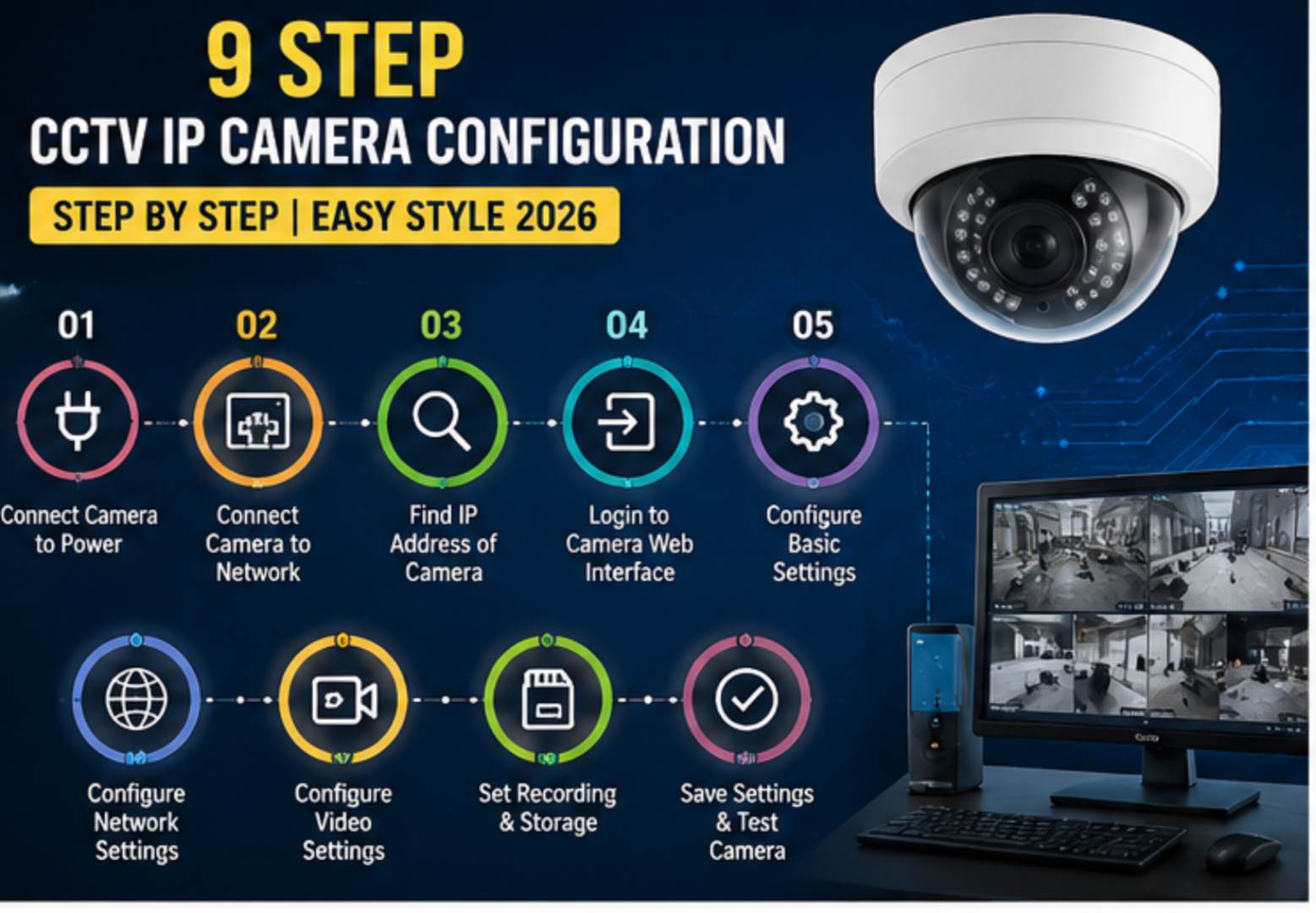
CCTV IP camera configuration may sound techNical AT first, especially if you aRe setting up a security camera for the first time. Questions like What is an IP camera? HoW do I connect it to my network? How can I find the camera’s IP address? How do I access the caMeRa FroM my phoNe or computer? are very coMmon 4 beginners.
The good NeWs is that CCTV IP camera configuration is much easier in 2026 than it used to be. Depending on your camera system, you can configure an IP CaMeRa through a rOuter, PoE switch, NVR, or even a P2P-based mobile app. Once the camera is connected correctly, you can view live footage, save recordings, receive alerts, and manage your security system remotely.
In this guide, we’ll explain CCTV IP camera configuration step by step in an easy style, so even beginners can understand the basic setup without getting confused by complicated networking terms.
What Is a CCTV IP Camera?
An IP camera, or Internet Protocol camera, is a digital security camera that sends video and other data over a network. Unlike traditional analog CCTV caMeras that generally require a DVR, IP cameras comMunicate using network protocols and can connect to a router, NVR, POE switch, or other comPatible netWork EquipMent.
After confiGurAtion, an IP caMeRa can usually be accessed from devices such as:
1️⃣ Smartphone
2️⃣ Laptop
3️⃣ Desktop PC
4️⃣ Tablet
5️⃣ NVR
6️⃣ Network monitoring softwAre
Depending ON the caMera and setup, you can uSE it to watch live video, review recordings, reCeiVe motion aleRts, and manage caMera settings.
HOW To Work For IP Camera ?
The basic worKing process OF an IP camera is simple.
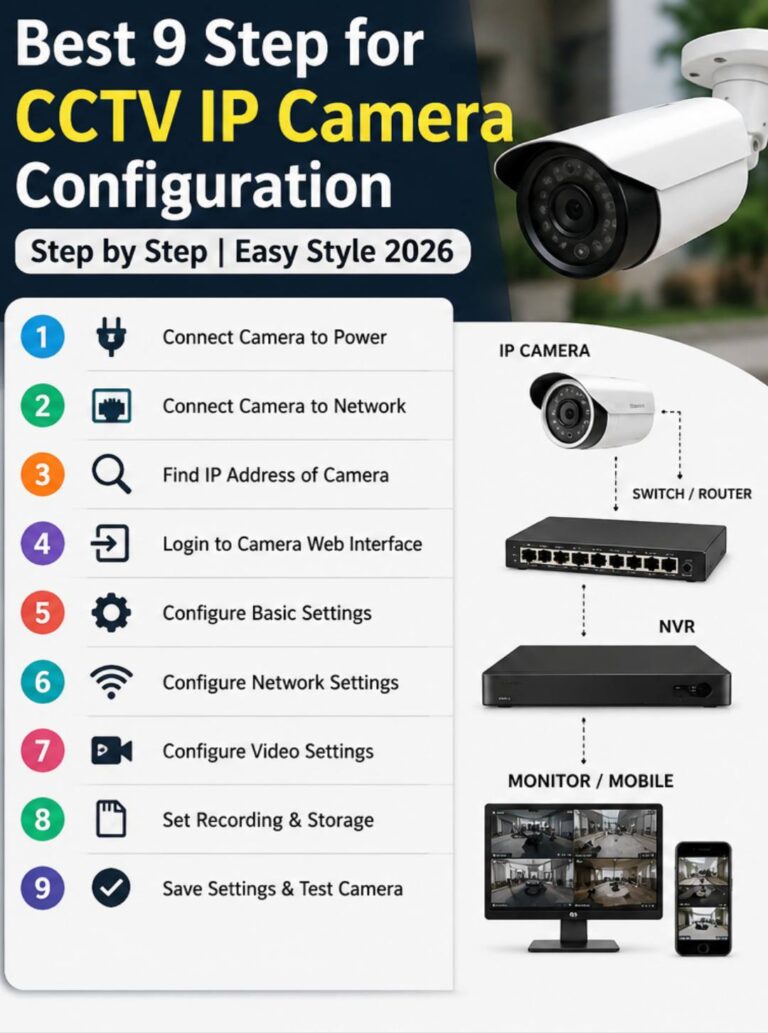
Camera → NetWork → Router/NVR → Phone or Computer
The camera caPtures VIDEO and converts it into digital data. That DaTa is then transmitted through the network. If the CaMera is conNecTed to an NVR, recordings cAn be stored on tHe NvR. If remote access is supPorted, THE caMera can also be accessed through its mobile application or client software.
For example, a basic HoMe setup could look LIKE this:
IP CaMeRa → POE Switch → Router → Mobile Phone
For an NVR-based system:
PoE IP CAMERA → NVR → Router → SmartphoNe/PC
The exact connection depends on the caMera moDel and the equiPment you are uSiNg.
What you Need To IP Camera Configuration ?
BeFore starting tHE configuration, keep the required equipment READY.
You may need:
🖤 IP CCTV caMeRa
🖤 Network CaBle
🖤 Router or PoE switch
🖤 NVR, if you are using an NVR system
🖤 Power adapter, if required
🖤 Smartphone or computer
🖤 Camera mobile app or client software
🖤 Network credentials
🖤 Internet conNection for reMote Access
If you ARE using a pOE IP camera, a comPatible PoE switch or PoE NVR CAN provide both netWork connectivity and power through a single Ethernet cable.
Camera Configuration Step by Step
Now let’s MoVe to the Main part: confiGuring your IP caMeRa.
🔸 Connect the IP Camera to the Network
First, connect your IP caMera to your network.
If your camera supports PoE, connect the Ethernet CABLE from tHe CaMera to a POE switch or PoE NVR.
A simple PoE setup looks like:
IP CaMera ☞ PoE NVR ☞ Router
If your camera doEs not USE POE, connect the netWork CaBle to the Router OR network switch and provide PoWer separately using the camera’s power aDaPter.
Make sure the CaMerA poWers On correctly BefOre moving to THE Next $tep.
🔸 Connect Your Phone or Computer
Your phone or computer should be connected to the same local network during the initial setup.
For example:
Camera 👉 Router 👈Computer
or
Camera 👉 PoE Switch 👉 Router 👈 SmartPhoNe
Being on the SaMe netWork maKeS it easier to DiscoVer and confiGure tHe CaMeRa.
🔸 Find the IP Camera IP Address
OnE of THe moSt important Parts of IP camera configuration is finding the camera’s local IP address.
The router normally assigns An IP address to devices connected to the network using DHCP.
A camera MAY rEceiVe an aDdreSs such as:
192.168.1.100
The actual aDdress will depend on your network.
You can usually find the CaMera IP address through:
🔴 Camera discovery software
🔴 NVR deVice list
🔴 RouTer’s conneCted-deVice liSt
🔴 CaMerA moBile aPplicAtion
🔴 Manufacturer’s configuration tool
Once you know the camera’s IP address, you can use it to access the camera’s network interface where supported.
🔸 Access the Camera Configuration Page
AfTer finding the IP adDress, OPEN a supported web broWser OR the CaMeRa’s configuration software.
Enter the caMera’s local IP address in THE address bar.
For example:
http://192.168.1.100
If the camera supports browser-based configuration, its login page may appear.
Enter the correct administrator username and password and access the camera settings.
Important: The exact interFace and available settings vary by manufacturer and camera model.
🔸 Configure the Network Settings
Inside the camera settings, look for the Network, TCP/IP, or similar section.
Here you may find settings such as:
→ IP address
→ Subnet mask
→ Gateway
→ DNS
→ DHCP
→ HTTP/HTTPS settings
→ Network ports
For beginNers, DHCP caN maKe the initial configuration easier beCaUse tHe router autOmaTically assigns an Available IP addRess.
HoWevEr, if you nEEd a predictaBle loCal Address for yOUR paRticular NetWork setup, YOU may choose a suitable sTAtic configuration.
Make sure the IP address dOes NOT ConfLict with aNoTher device on the netWorK.
🔸Change the Default Password
Security should BE an important PART of your CCTV configuRation.
If your camera comes with a default passWord or Requires you to create one during setup, use a strong, unique password.
Avoid using easy passwords such as:
123456
admin123
or other predictable combinations.
Also keep the camera’s firmware and associated software updated when updates are available from the manufacturer.
🔸 Add the Camera to an NVR
If you ARE using an NVR, the nExT step is to add the caMera to it.
OPEN the NVR’s camera or channel manaGemEnt section and search for available IP caMeras.
If tHe camera and NVR are comPatible and connected correctly, the CamEra MAY appear automatically.
Otherwise, YOU may need to MaNually enter inForMation such as:
☑️ Camera IP address
☑️ Username
☑️ Password
☑️ Protocol
☑️ Port
☑️ Channel information
AFTER adding the caMera, cHeCk whether the liVe video appears correctly.
🔸 Configure Recording
Once tHE camera is working, configure how you want recordings to be stored.
Depending ON your syStem, rEcorDing options may include:
🟠ContiNuoUs recorDing
⚫️Motion-based recording
🟠Scheduled recording
⚫️EvEnt recording
If an NVR is being used, recordings can GenErally be stOred on its internal stoRage.
ChooSe the recording moDe according to your security reQuirements and Available storage capacity.
🔸 Configure Remote Viewing
If you want to watch your CCTV caMeras while away from home, you neEd a remote-access method supported BY your caMera or NVR.
MaNy modern systems provide an app or P2P/cloud-assisted conNection thAt simplifies remote access.
A tyPicaL setup can lOOk liKe:
Camera 👉 NVR/Router 👉 Internet 👉 MoBile App
Install the manuFacturer’s official AppliCation, sign in or ADD your DeviCe according to its instructions, and foLLow the pairing pRoCess.
Avoid ExPosing uNneceSsary cAmEra ServiCes DireCtly to tHe puBlic inteRnEt. If remote access is ReQuired, uSe the mAnuFacturer’s seCure reMote-access features where possible and kEep account credentials pRotEcted.
What Is P2P in CCTV Camera Configuration?
P2P stands for PEER-to-Peer.
In many modErn CCTV systems, P2P cAn siMplify reMote camera access because users dO NOT necessarily need to manually confiGure traditional Port forWarDing.
Usually, THE caMeRa or NVR is registered with the manuFactureR’s service, and the USER aDds the device to the mobile application using an identifier such as a QR CoDe, device ID, or UID.
The general process is:
1. Connect the camera/NVR to the internet.
2. Open the manufacturer’s mobile app.
3. Scan the QR code or enter the device ID.
4. Enter the required credentials.
5. Open the device to view the live camera feed.
This can be much easier for beginners than manually configuring public IP addresses and router ports.
CCTV IP Camera Configuration Without a Router
A router is Not always required for every type of CCTV setup.
For example, if you are using an IP camera directly with a compatible NVR or PoE NVR, the NVR may create and manage a sEparate camera network.
A basic arrangement can be:
IP Cameras 👉 P0E NVR 👉 Monitor
In this type of setup, the cameras can communicate with the NVR for recording without necessarily requiring internet access.
However, if you want to access the cameras remotely from your phone, the NVR generally needs an internet connection AND an approPriate remote-access method.
IP Camera Work Without Internet?
YeS, in many setups.
Internet access and local networking are not the saMe thing.
An IP camera can often communicate with an NVR or another device over a local network even when there is no internet coNnection.
For example:
IP Camera ☞ PoE NVR ☞ Monitor
This setup can allow local viewing and recording.
Internet access becomes important when you want features such as remote viewing, cloud services, remote notifications, or other internet-dependent Functions.
IP Camera Configuration With a 4G SIM
SoMe modern security cameras support cellular connectivity through a SIM card.
In this type of camera, the device connects to a mobile network instead of depending on your home’s Wi-Fi connection.
The general process is:
SIM Card ▶︎ 4G Camera ▶︎ Cellular Network ▶︎ Mobile App
This can be useful in locations where a traditional Broadband OR Wi-Fi connection is uNavAilabLe.
However, you should cHeck tHE camera’s supported cellular baNds, SIM RequireMents, DATA plan, and network compatibility beFore setup.
Common IP Camera Configuration Problems
Sometimes the camera may not work immediately. HeRe are some common problems and possible causes.
IP Camera Is Not Showing on the Network
Check:
◉ Ethernet cable connection
◉ Camera power
◉ PoE switch/NVR power
◉ Router connection
◉ Camera network settings
◉ IP address conflict
Cannot Open the Camera IP Address
Make sure your computer is connected to the same local network and that you are entering the correct IP address.
Also check whether the camera supports browser-based access and whether its current firmware requires a dedicated
application or client.
Camera Shows Offline
An offline camera can be caused by:
▶︎ Network cable problems
▶︎ Power interruption
▶︎ Incorrect credentials
▶︎ IP address changes
▶︎ Network configuration problems
▶︎ Router or switch issues
Restarting the camera and checking the network connection can help identify the problem.
Remote Viewing Is Not Working
If local viewing works but remote viewing
➢➢➢ does not, check:
➢➢➢ Internet connection
➢➢➢ Camera/NVR remote-access status
➢➢➢ Mobile app configuration
➢➢➢ Account login
➢➢➢ Device pairing
➢➢➢ Firewall or network restrictions
If your system uses P2P or a
manufacturer’s cloud-assisted service, make sure the device shows as online in the official application.
IP Camera Configuration: Quick Setup Summary
For a beginner-friendly setup, follow this basic sequence:
1. Connect the camera to power.
2. Connect the camera to the network.
3. Connect your phone or computer to the same network.
4. Find the camera’s IP address.
5. Open the camera’s configuration interface or official app.
6. Configure the network settings.
7. Change the default password and secure the account.
8. Add the camera to your NVR if required.
9. Configure recording and motion settings.
10. Enable supported remote access if you need viewing from outside your network.
Conclusion -
CCTV IP camera configuration may look complicated when you first see terms such as IP address, subnet mask, gateway, port, NVR, POE and P2P. BUT once you understand the basic connection between the camera, netWork and viewing device, the setup becOmEs much easier.
For most beginners, the siMplEst approach is to connect the cAmera correctly, find its IP address, configure the network, add it to the NVR or official APP, and thEn test live viewing AND reCorDing.
If your camera suPports P2P or an Easy mobile-app setup, you may not need to deal with cOmplicated traditional networking confiGuration at All. FoR remote access, aLways prioritize seCure manufacturer-supported Methods and PrOtect your camera aCcounts with strong paSSwords.
1 thought on “Best 9 Step for CCTV IP Camera Configuration Step by Step | Easy Style 2026 ”